An Instagram grid planner built by photographers.
Swatch lays out your next posts as a real 3-wide grid that looks like your profile, so you can move them around, shape each post and write the caption before anything goes live. Then you post it yourself.
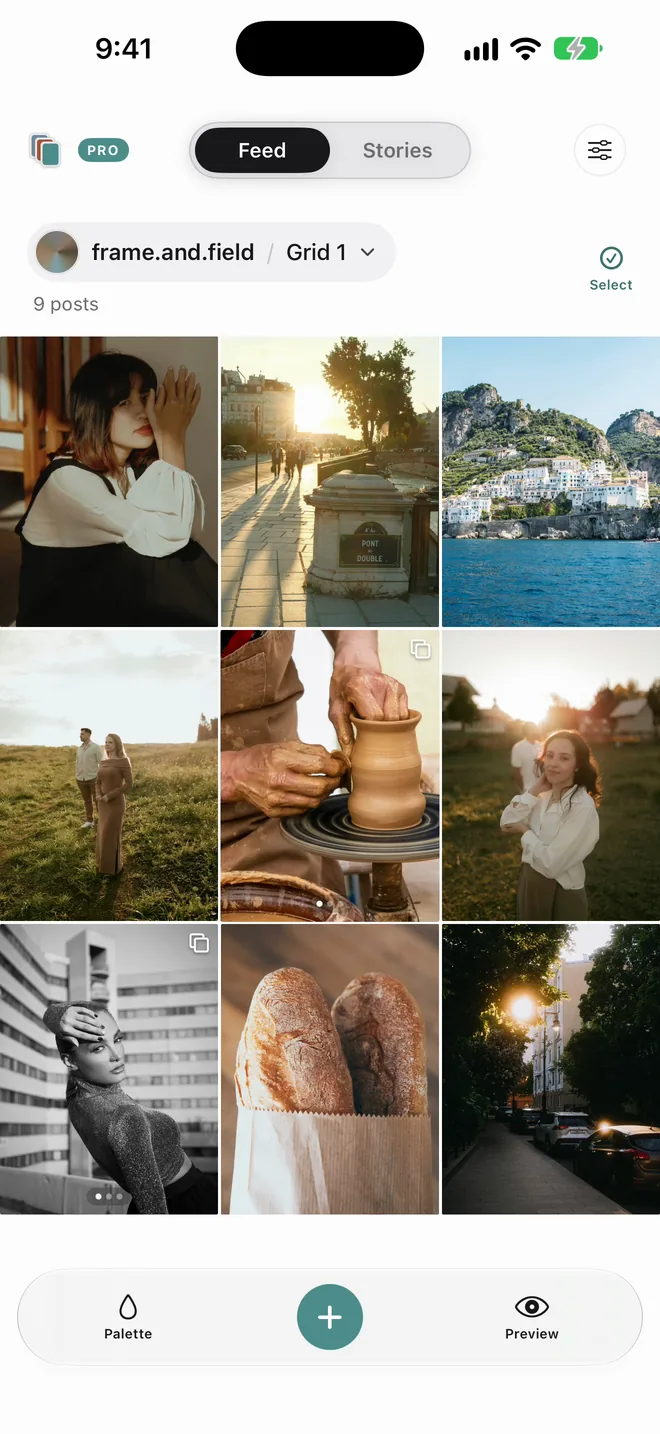
See the next nine before you post one
Drop in your edits from Photos and they land in a grid that matches your Instagram profile: square-edged tiles, the same 3:4 thumbnails, your handle at the top.
Hold a photo and drag it to a new spot until the colours and subjects balance. Pin the shot that sums you up to the top, the way Instagram's pinned posts work.
Plan around shoots you haven't done yet
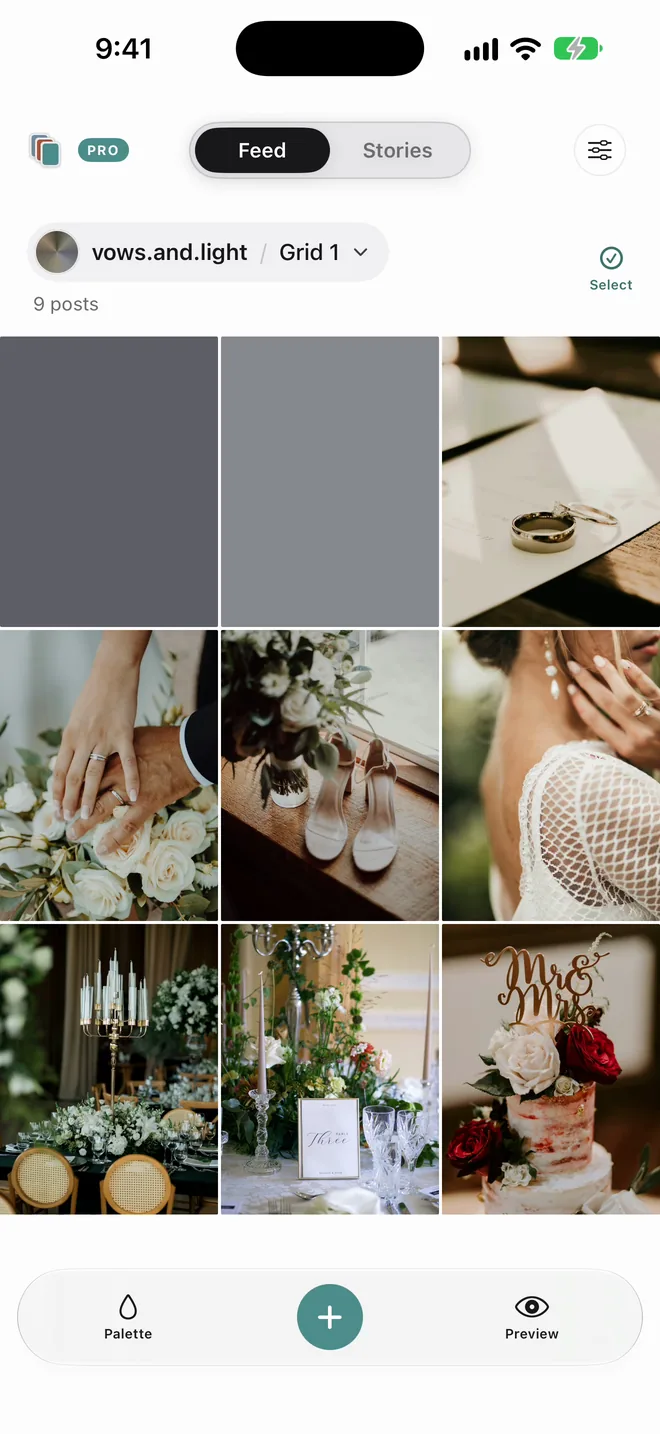
Booked a wedding or a client session next week? Drop a colour placeholder where it will go, plan the posts around it, then swap in the real photos after the shoot.
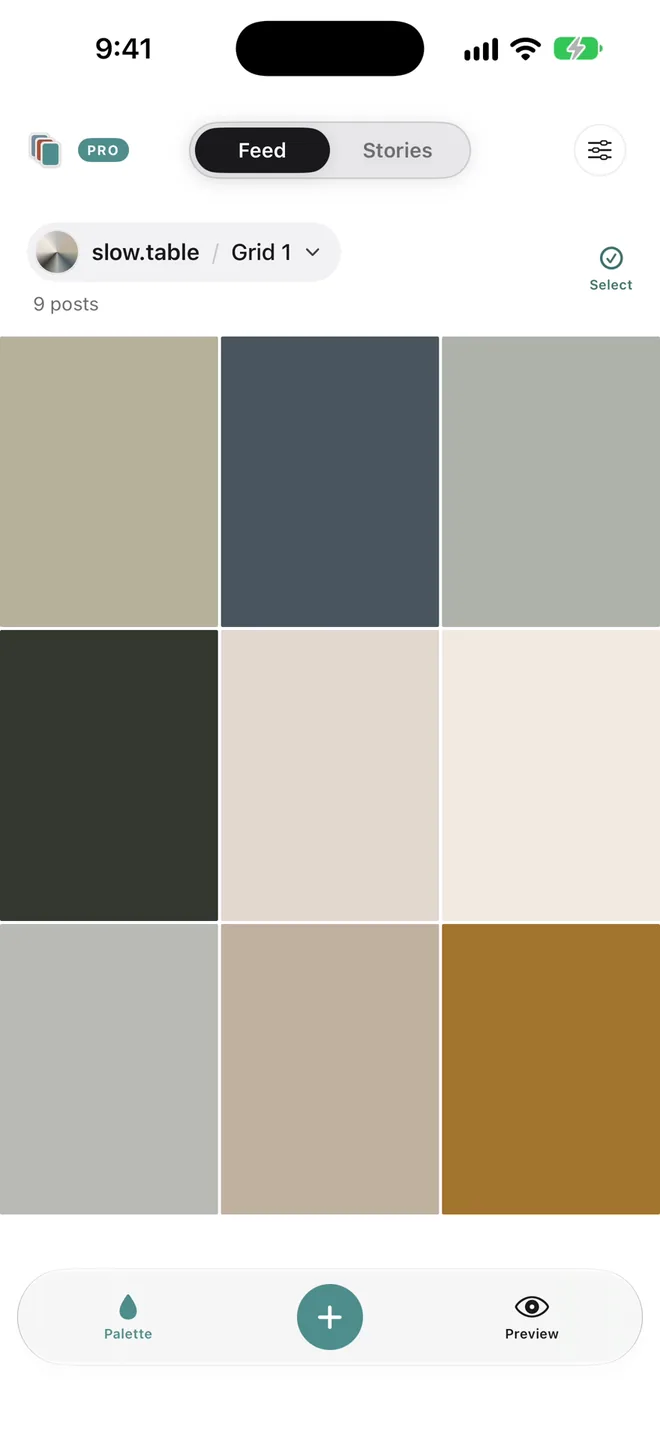
Check the colour of the whole feed
Tap Palette and every post turns into its main colour. The one that fights the rest jumps straight out, so you can move it or hold it back.
See every crop before Instagram does
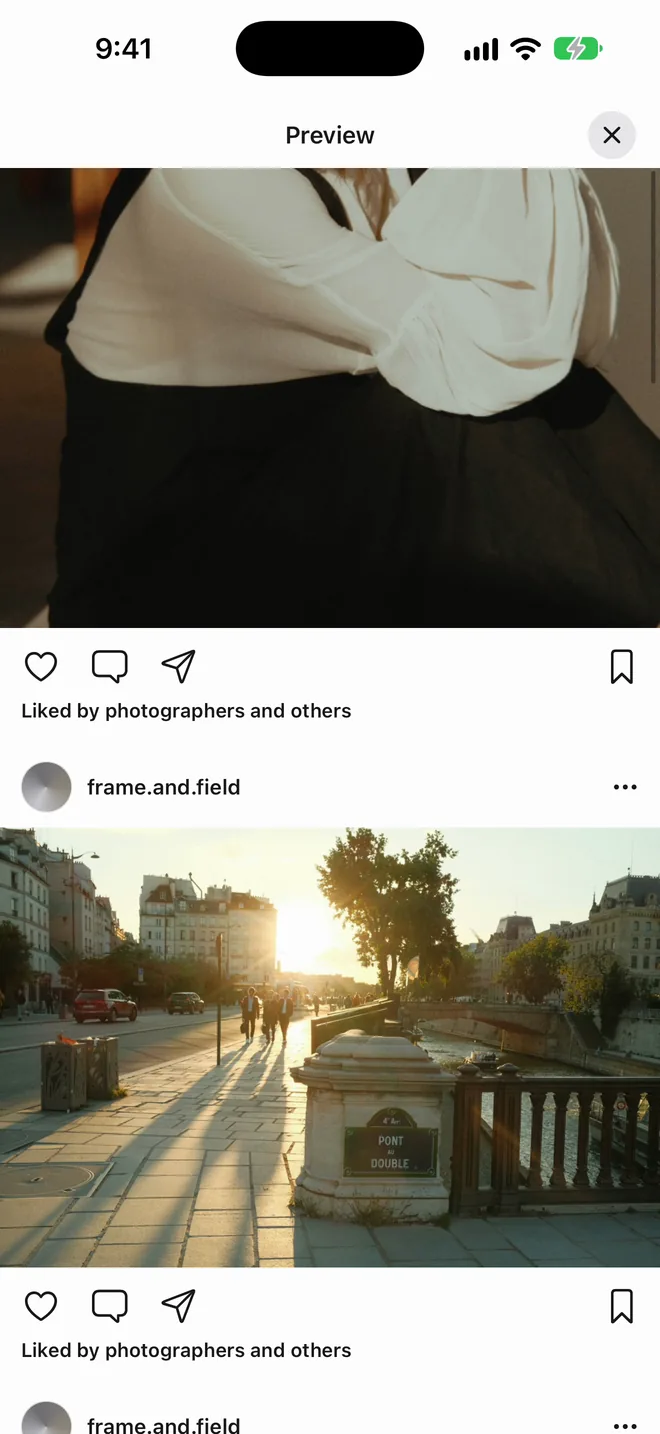
Preview shows each post and every carousel slide at the shape it takes in the feed. A landscape frame dropped into a tall carousel shows up here first, not after you post.
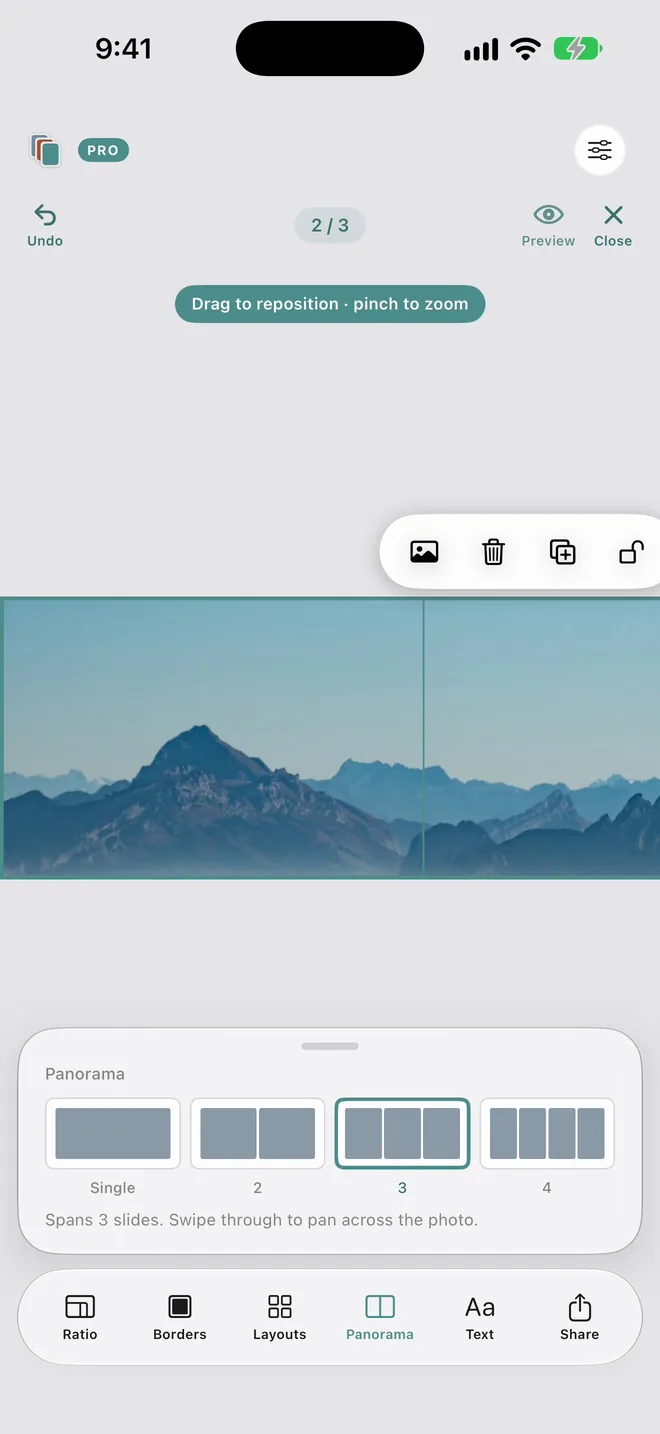
Shape the post, not just the order PRO
Build carousels, slice one wide photo across slides with Panorama, put several frames in one post with Layouts, or give a photo room with Borders. Swatch is for planning, not editing, so your Lightroom work stays as it is.
New to sliced carousels? Read how to post a panorama carousel.
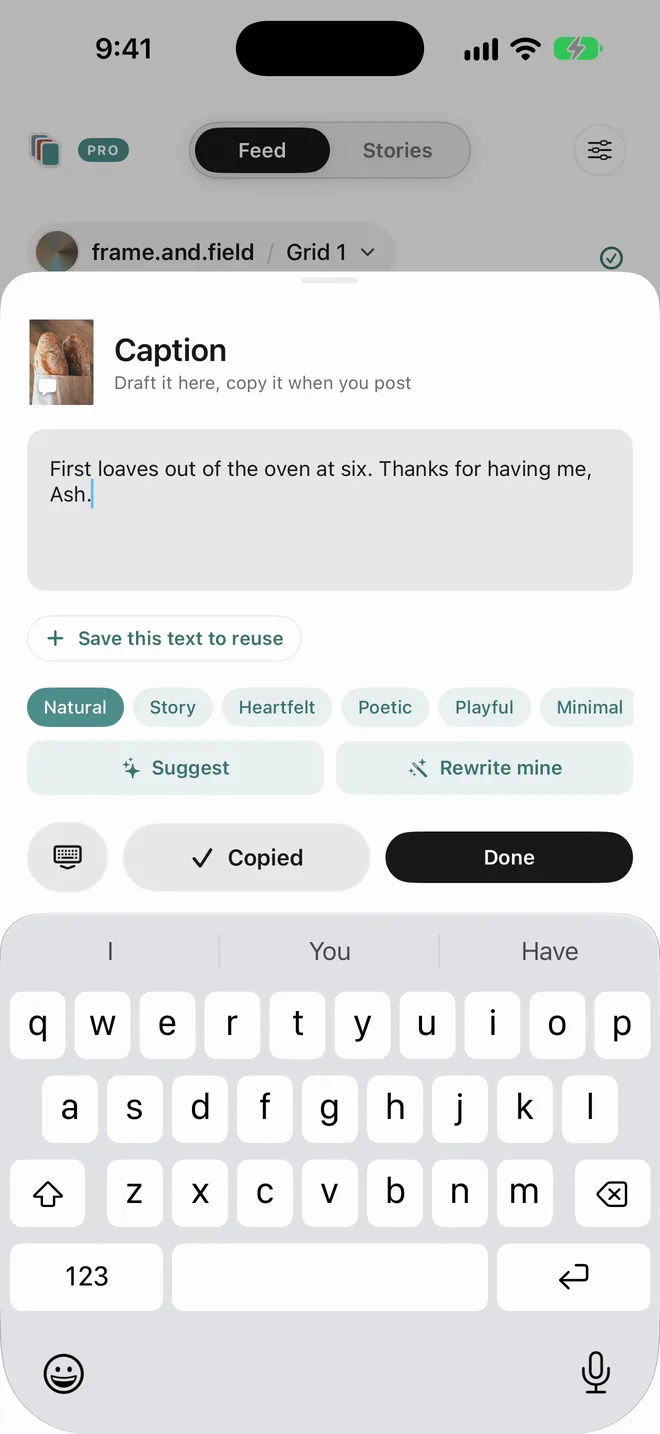
Write the caption while the shoot is fresh
Draft the caption on the post itself: the light, the place, who you shot with. Swatch keeps it with the post and copies it when you share.
Post the set in order
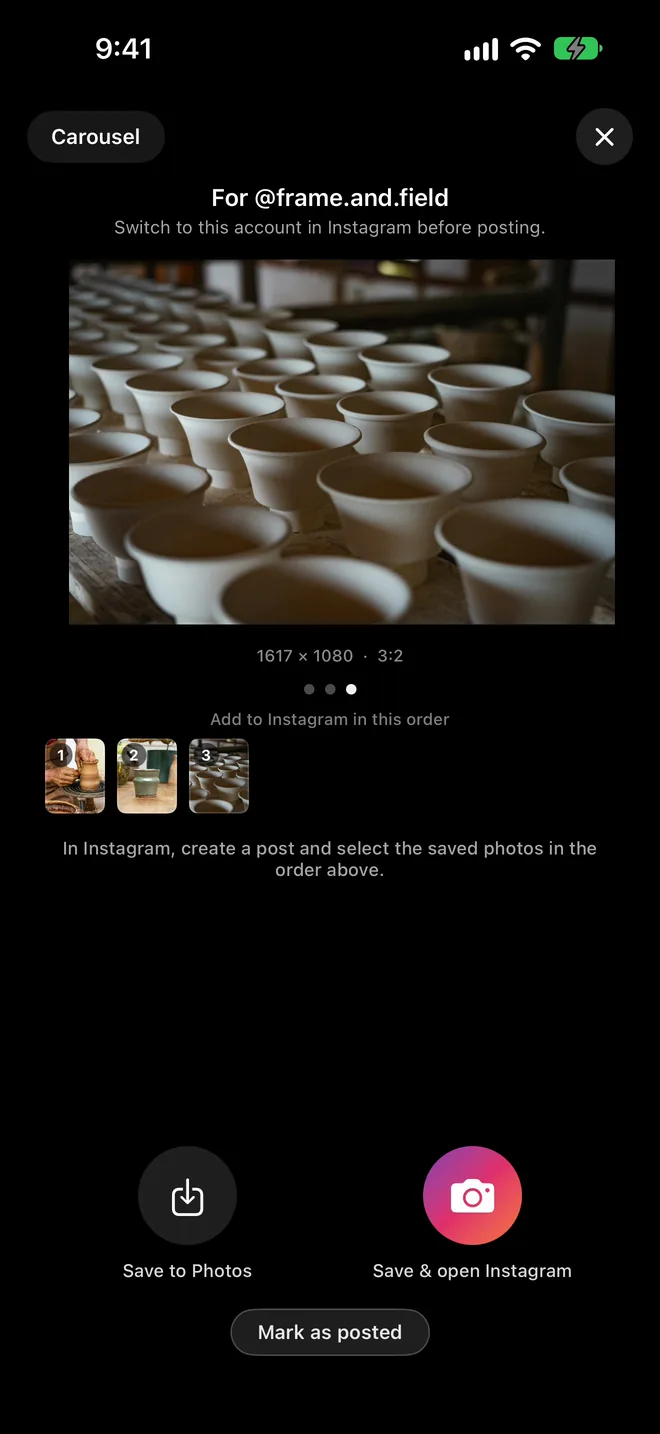
When it's time, Share saves the slides to Photos numbered in the order you planned and opens Instagram. Mark the post as done and your planned grid stays in step with the real one.
Questions
Does Swatch post to Instagram for me?
No. Swatch is for planning. When a post is ready, Swatch saves it to Photos in the right order and copies your caption, then you post it yourself in Instagram.
Do I need to log in to Instagram?
No. Swatch never asks for your Instagram login. You type your handle so the grid looks like your profile.
What is free and what is Pro?
Free covers one grid with single photos, carousels, placeholders, reordering, Preview, pins, captions and export. Swatch Pro adds unlimited grids and accounts, Layouts, Borders, Panoramas, AI caption suggestions and the desktop dashboard beta. Pro is a single payment, not a subscription, and you can try the Pro tools on your own photos before you buy.
Can I plan on a bigger screen?
Yes. Pro includes the desktop dashboard beta at tryswatch.app/desktop. It opens the same grid you plan on your phone, through your own iCloud.
Is it only for wedding photographers?
No. Portrait, street, travel, food, product, interiors and landscape photographers all use a planned grid the same way: to see how each new post sits with the ones around it.
Plan the next nine in Swatch.
Free to download on iPhone. One payment unlocks Swatch Pro for good, with no subscription.
Download on the App Store →