How to add a white border to an Instagram photo
A white border lets a landscape show in full on your 3:4 grid, and gives a portrait room to breathe. Here's the quick way and the manual way.
The quick way: Borders in Swatch PRO
- Add the photo to your grid and tap Edit.
- Tap Borders and pick a size: Small, Medium, Large or Square. Original keeps the whole photo on the white card.
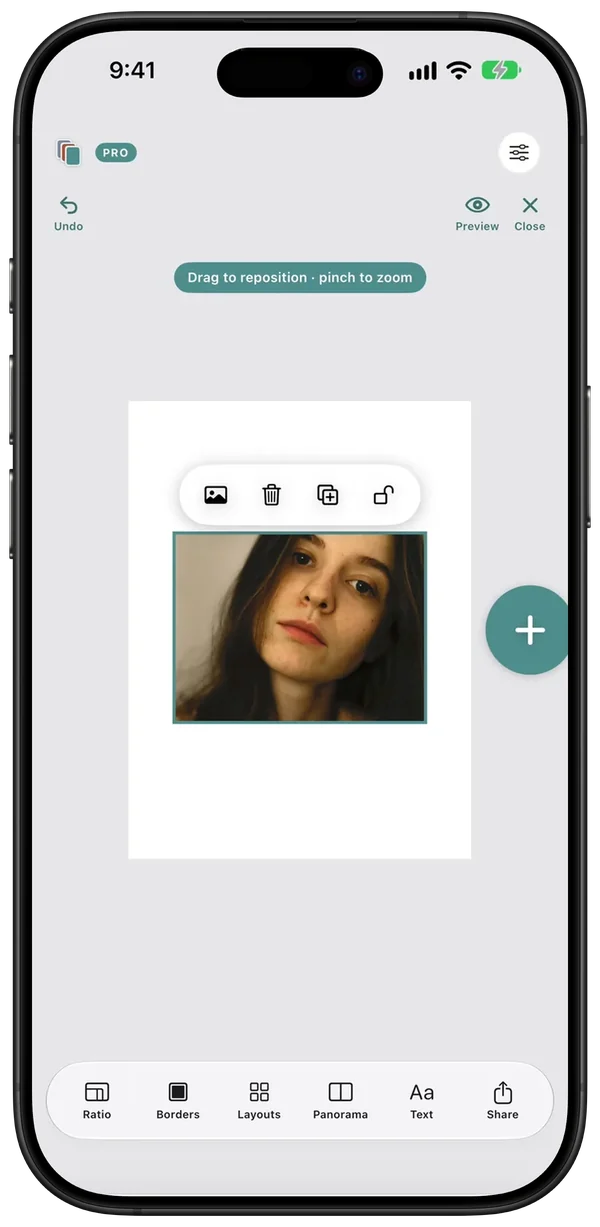
- Drag to reposition and check it on the grid beside your other posts.
- Tap Share to save the finished photo, then post it in Instagram.
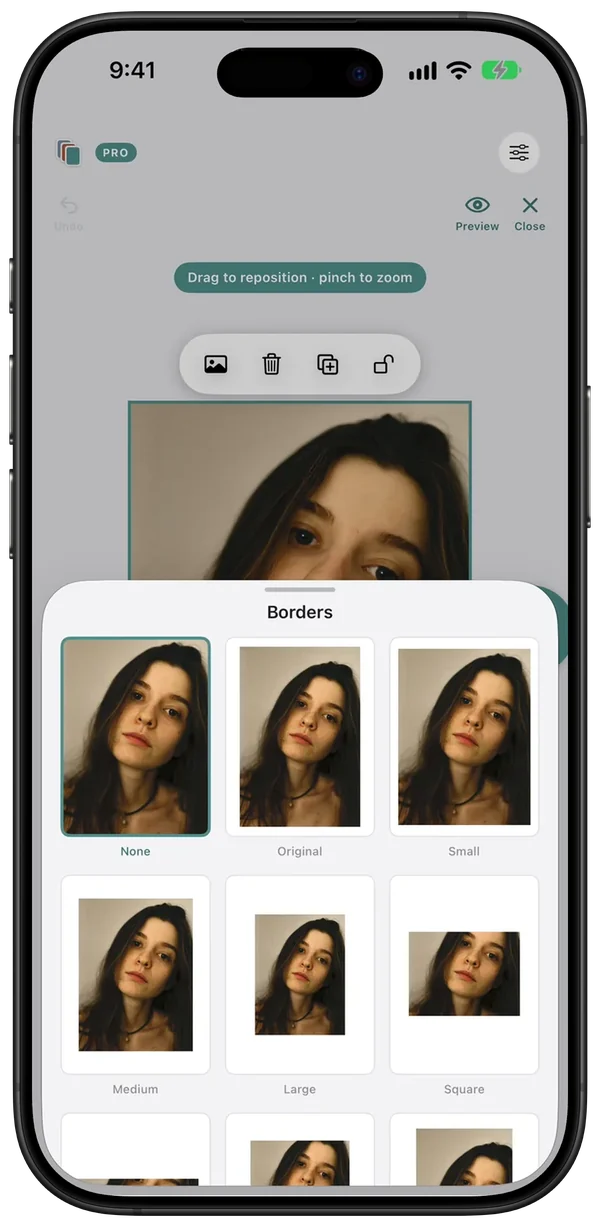
See it in place
The border is only half the decision. In Swatch you see the framed post beside the rest of your grid, so you can tell whether it fits before you post.
The manual way in Photoshop
- Open the edited photo and fit it inside 1080 × 1440 using Image Size, leaving room for your margins.
- Choose Image, then Canvas Size. Set it to 1080 × 1440 pixels with white as the canvas colour.
- Export as JPEG and post it.
In Lightroom Classic, the Print module can do the same: set a custom 3:4 page, position the photo and print to a JPEG file.
Tips from photographers
- Use the same border across a set so a carousel or a row reads as one series.
- For a portrait, a slim border is usually enough. Save wide margins for landscapes.
- White suits most feeds, but check it beside your other posts first.
Questions
What size should a bordered photo be?
Make the canvas 1080 × 1440 (3:4) so it fills the grid tile, then place your photo inside it with even margins.
Does a border hurt image quality?
Your photo takes up fewer pixels on the canvas, so it's smaller on screen. A slim border costs very little, and a wide landscape on a tall canvas costs the most.
Are Borders free in Swatch?
Borders are part of Swatch Pro, a one-time payment with no subscription. You can try them on your own photos before you buy.
Will Instagram crop the border?
Not at 3:4. It shows on the grid and in the feed without a crop. At other shapes, the grid can cut the sides of your border.
Plan the next nine in Swatch.
Free to download on iPhone. One payment unlocks Swatch Pro for good, with no subscription.
Download on the App Store →