Instagram feed colour palette
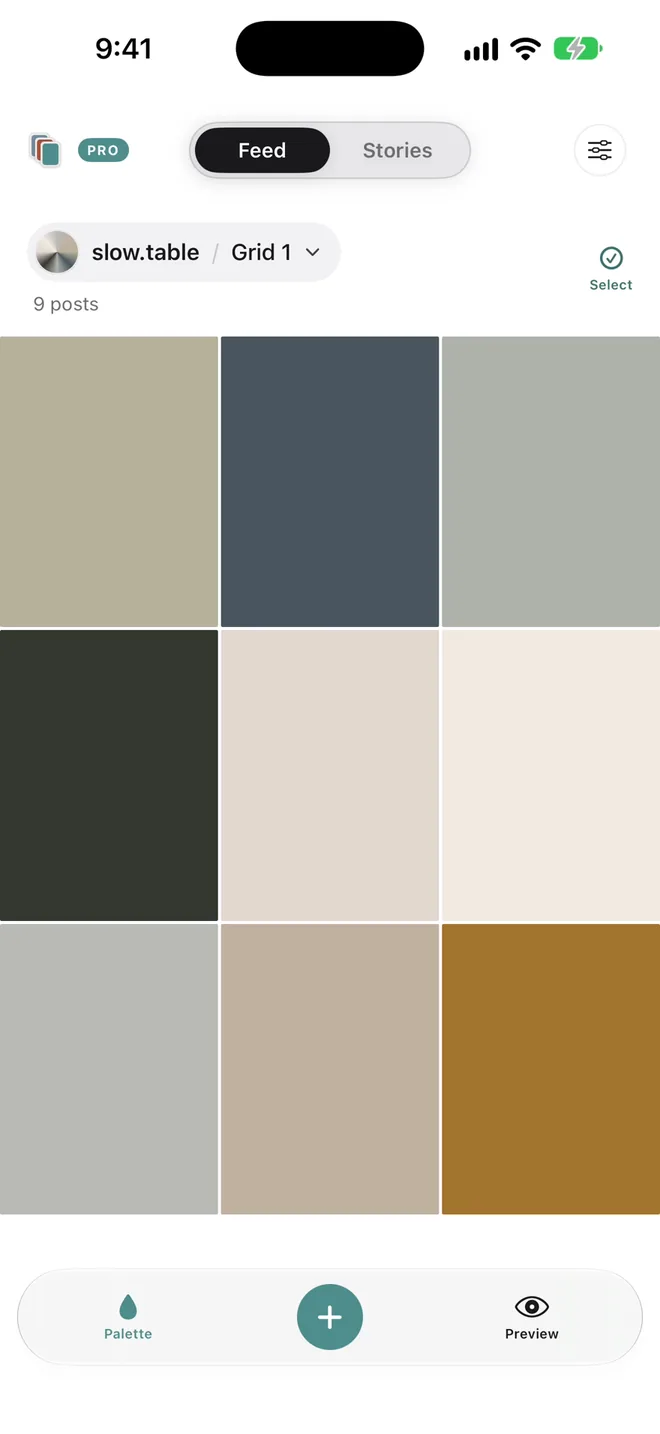
See your feed as colour. Drop in up to 12 photos and each one becomes its main tone, laid out like your grid. The one that stands out gets an orange ring.
How to use it
- Choose up to 12 photos: your last posts, your next ones or both.
- Drag them into the order you plan to post. Instagram adds new posts top left.
- Look for the orange ring and try that photo in another spot.
- Download the palette as a PNG strip to keep your tones on hand.
Palette in Swatch
Palette in the Swatch app does this on your whole planned grid: one tap turns every post into its main colour, so you can drag posts around until the tones flow. Palette is free.
Questions
Are my photos uploaded?
No. The palette runs in your browser, so your photos never leave your device.
How is the main colour worked out?
Each photo is shrunk and its pixels sorted into a few colour groups. The biggest group is the photo's main colour.
What does the orange ring mean?
It marks the photo whose colour sits furthest from the others. It isn't wrong, but it's the one people notice first on your grid.
How do I make my feed look more consistent?
Pick a small set of tones, edit with the same presets and spread loud colours apart. Moving a photo one spot can be enough.
Can I see this on my real grid?
Yes. Palette in Swatch shows every post in your planned grid as its main colour. Palette is free.
Plan the next nine in Swatch.
Free to download on iPhone. One payment unlocks Swatch Pro for good, with no subscription.
Download on the App Store →