How to order an Instagram photo dump
A photo dump looks thrown together, but the good ones aren't. Here's an order that keeps people swiping.
- Open with your best frame. It's the grid tile and the scroll stopper.
- Go wide, then close. Follow a scene with a detail from it, so each swipe shows something new.
- Break it up. Put a quiet or plain frame between two busy ones.
- Keep the colours talking. Group warm and cool frames instead of flicking between them.
- End on a feeling. A last frame that's funny, soft or behind the scenes gives people a reason to swipe back.
Drag your photos into order in the free photo dump planner, swipe through it, then download them numbered. For picking the photos, read how to make a photo dump.
See it on your grid
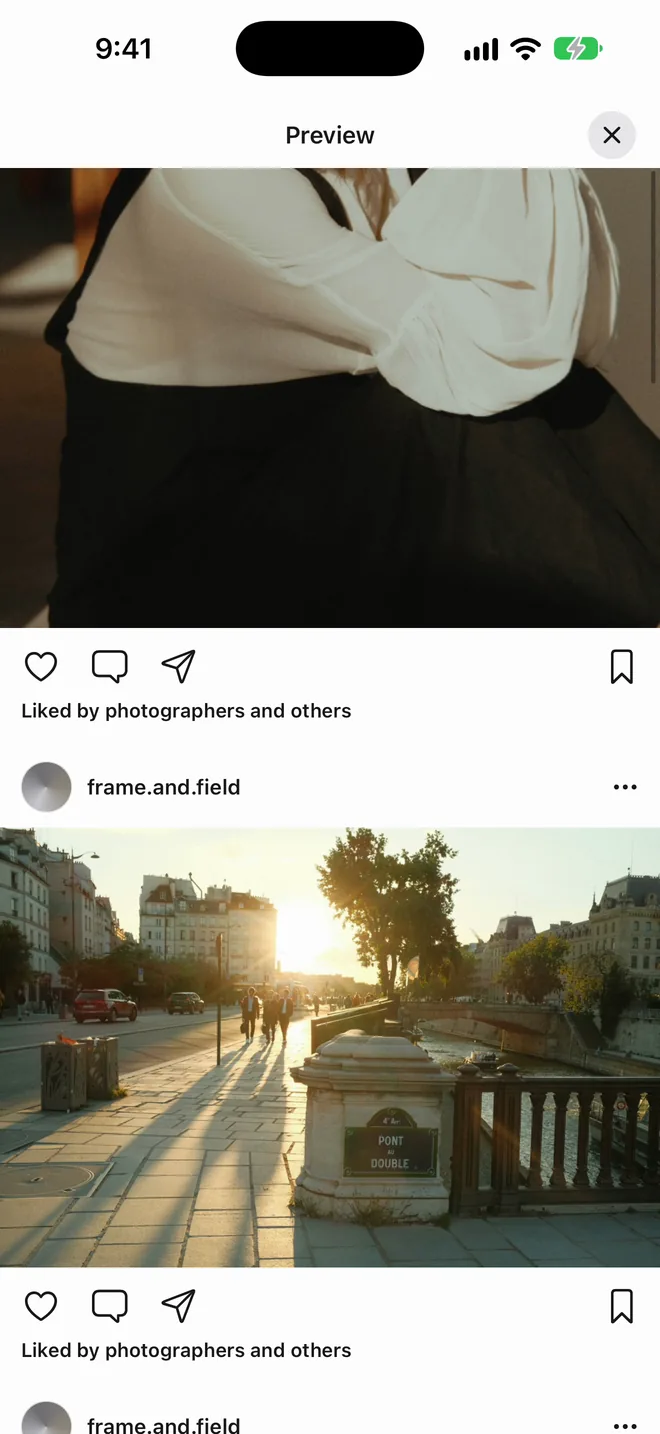
In Swatch a photo dump is a carousel in your planned grid. You see the first slide as a tile beside your other posts and swipe the rest in Preview.
Questions
How many photos can a photo dump have?
Up to 20 photos and videos in one post.
Which photo should go first?
Your strongest single frame. It's the only one people see on your grid, as a 3:4 tile, and the one that stops the scroll.
Should the photos match?
They should feel like one moment: a shared colour, light or place. Mix close and wide shots so the swipe has a rhythm.
Can I preview the order?
Yes. The free photo dump planner lets you drag the photos into order and swipe through them before you post.
Plan the next nine in Swatch.
Free to download on iPhone. One payment unlocks Swatch Pro for good, with no subscription.
Download on the App Store →