How to make an Instagram photo dump
A photo dump looks casual, but the good ones are put together with care. Here's how to choose the photos, set the order and check it before it goes up.
1. Pull more than you need
Gather 15 to 20 photos from the week, trip or event: wide scenes, details, people, food, light. Then cut to the 6 to 10 that work together.
2. Set the order
- Open strong. The first photo is your grid tile and the reason people swipe.
- Mix the distance. Follow a wide shot with a close detail.
- Spread the colour. Keep two loud frames apart.
- End well. A funny or quiet last frame makes people swipe back.
3. Pick one shape
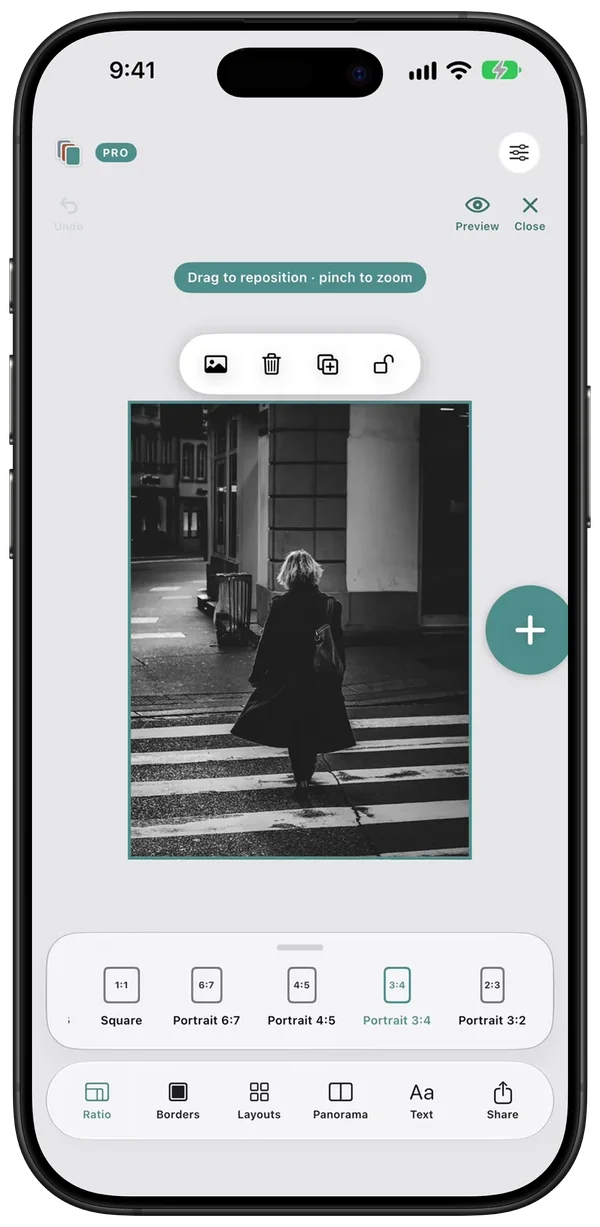
Every slide takes the shape of the first, so mixed landscapes and portraits get cut. Pick 4:5 or 3:4 and frame each photo for it, or add matching borders. See carousel sizes.
4. Swipe it first
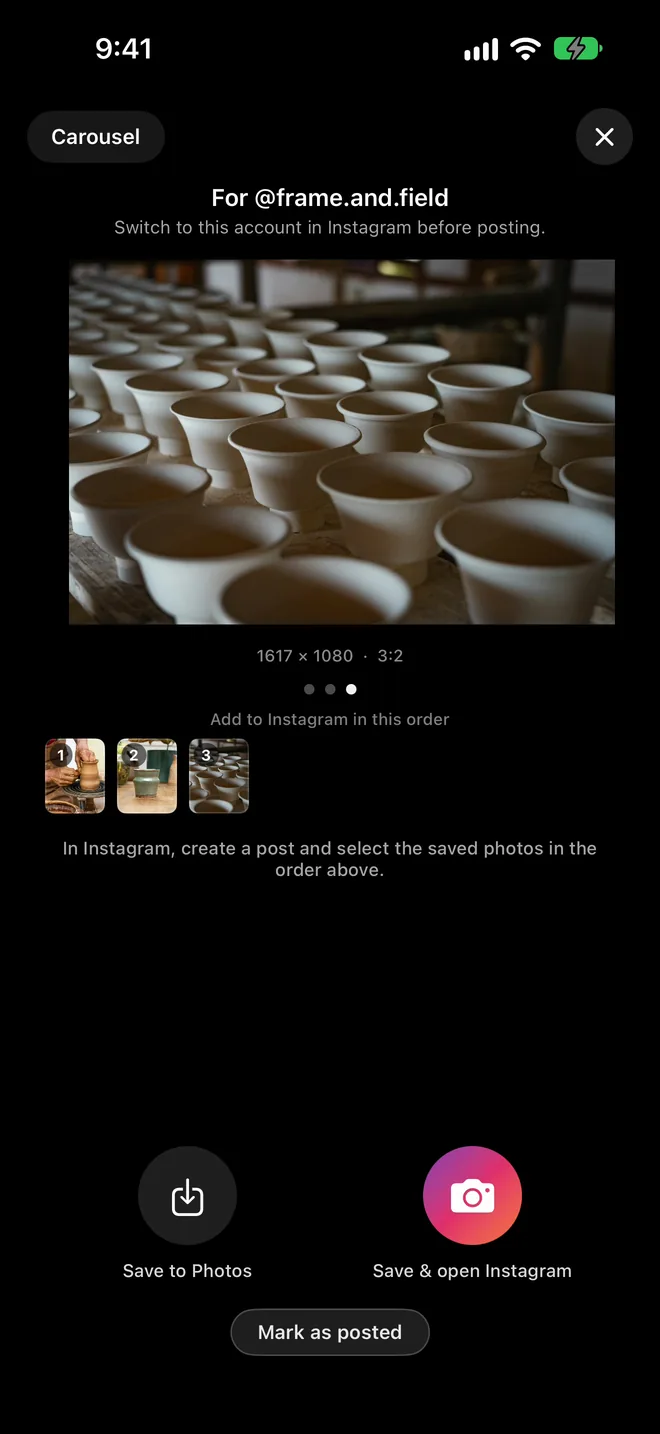
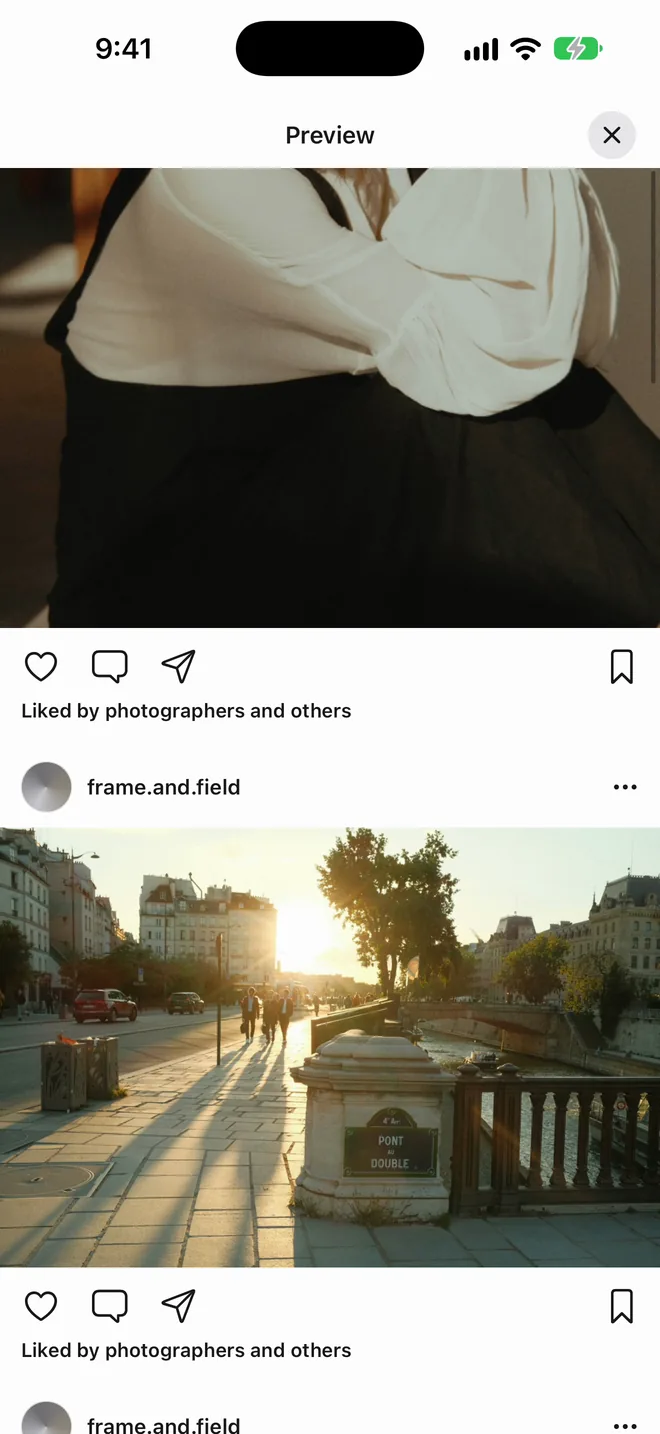
In Swatch, build the carousel, drag slides into order and swipe it in Preview. Share saves the slides to Photos numbered in order and copies your caption.
Questions
What is a photo dump on Instagram?
A carousel of everyday photos from a week, a trip or an event, posted together in one relaxed post.
How many photos go in a photo dump?
Instagram allows up to 20. Most read well with 6 to 10, so each frame still gets a look.
Can I put several photos on one slide?
Yes, with Layouts in Swatch Pro: two, four or more photos share one slide in a grid or on a white mat.
How do I make the order look right?
Start strong, mix close and wide shots, keep similar colours apart and end on something that makes people want to swipe back. Preview the swipe before you post.
Plan the next nine in Swatch.
Free to download on iPhone. One payment unlocks Swatch Pro for good, with no subscription.
Download on the App Store →