How to preview your Instagram feed before posting
See how a new post sits with the rest of your grid before anyone else does. Here's how to do it without touching your real profile.
1. Lay out your next posts as a grid
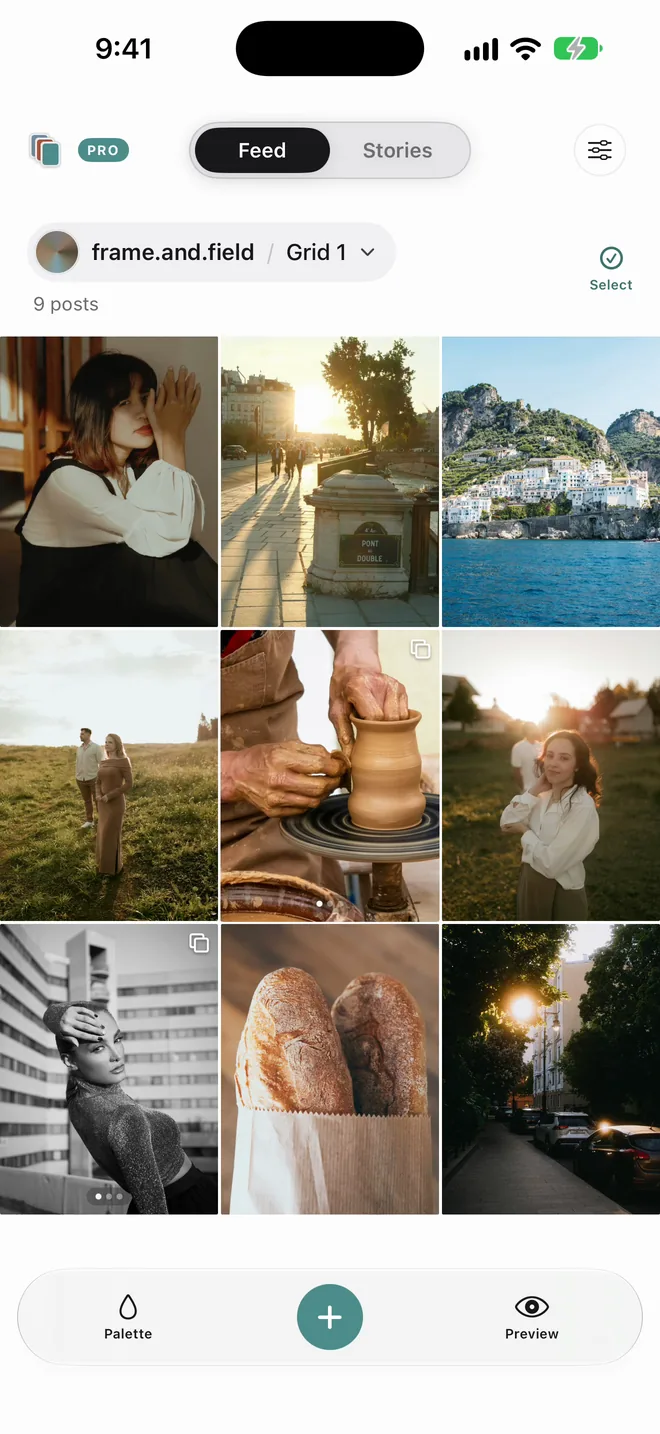
Add the photos you plan to post to Swatch. They land in a 3-wide grid with 3:4 tiles, the same shape as your Instagram profile, with your handle at the top.
2. Scroll it as a feed
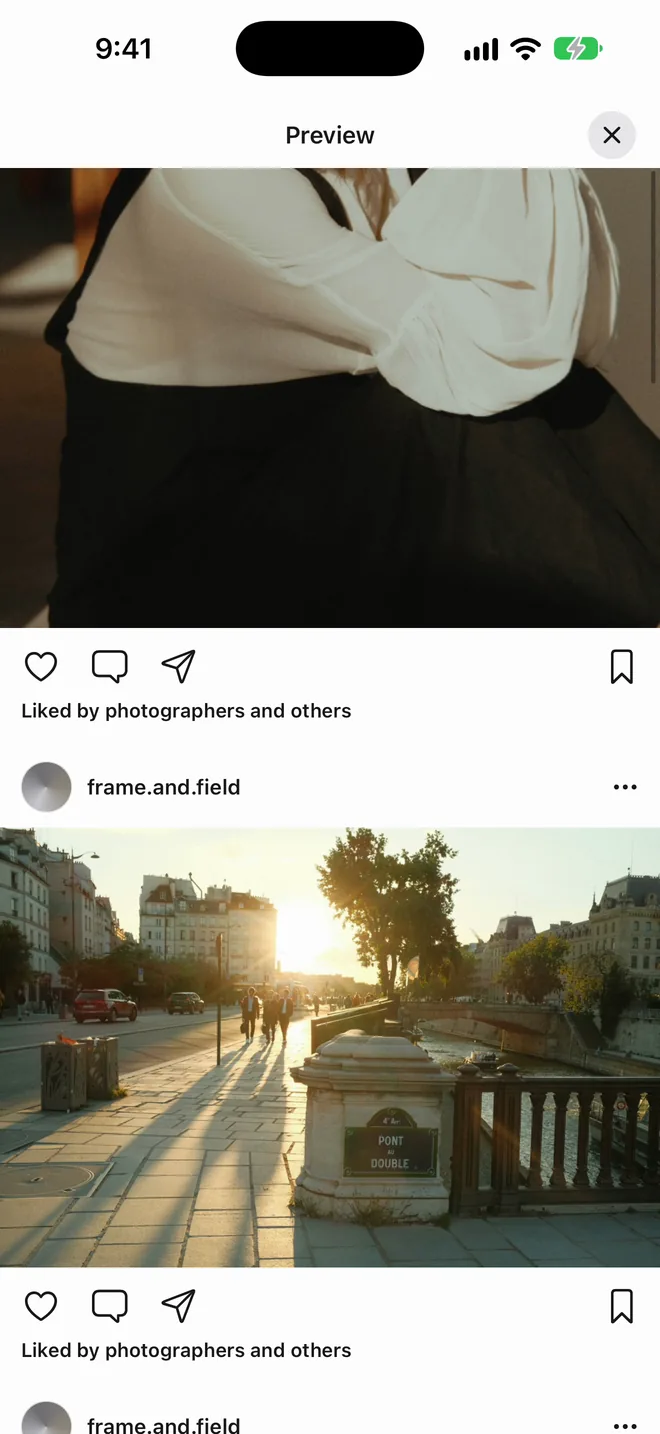
Tap Preview and scroll your posts the way followers see them, at their real shape, with every carousel slide. Preview is free.
3. Move what doesn't fit
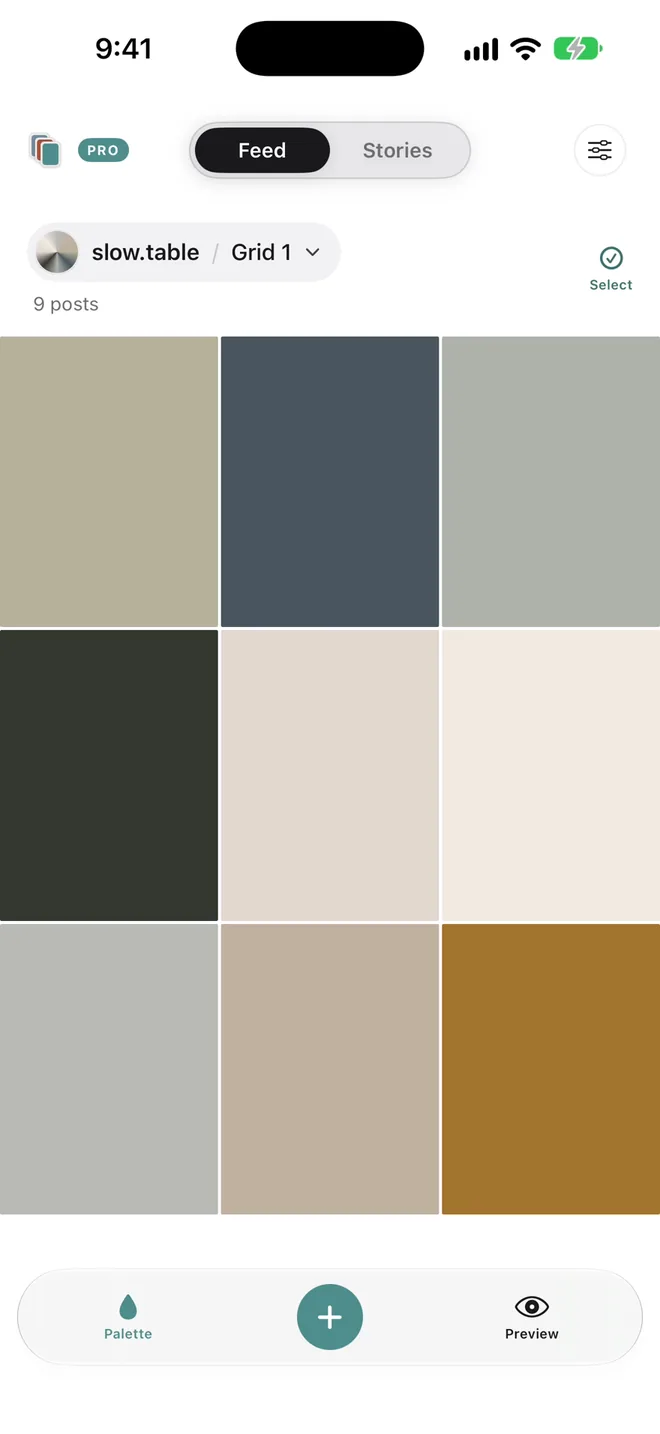
Hold a post and drag it to a new spot. Tap Palette to see each post as its main colour, so the one that fights the rest stands out.
Why not test on Instagram itself?
Posting and then archiving a photo to test the order puts it in followers' feeds while it's up. A preview keeps the testing off your profile.
Checking one photo? The free crop checker shows it on the grid, in the feed and as a carousel slide.
Questions
Can I preview my Instagram feed for free?
Yes. In the free version of Swatch you add your photos, see them in a 3-wide grid like your profile and open Preview to scroll them as a feed. No Instagram login.
Does Instagram have a preview?
Instagram shows one post before you share it, not how it sits in your grid. Archiving and restoring posts to test the order affects your real profile, so a planner is safer.
Will the preview match my profile exactly?
Swatch uses Instagram's 3:4 grid tiles and shows posts at the shapes the feed allows. Instagram changes its layout now and then, so give the real post a quick check after sharing.
Can I preview on my computer?
Yes, with Swatch Pro: the desktop dashboard beta shows the same grid on a full-size phone in your browser.
Plan the next nine in Swatch.
Free to download on iPhone. One payment unlocks Swatch Pro for good, with no subscription.
Download on the App Store →