Instagram white border tool
Post any photo whole. Add a white or coloured border so it fits a 4:5, 3:4 or 1:1 post without cropping, check the grid tile and download.



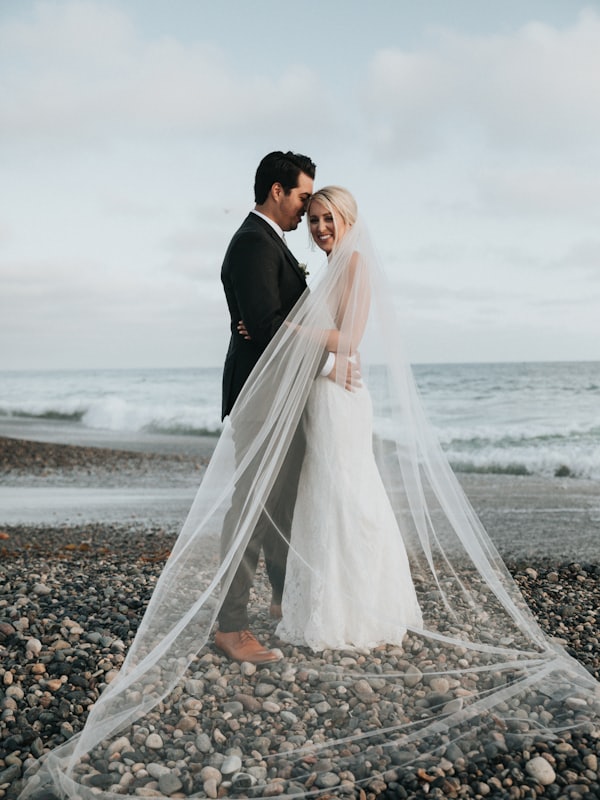

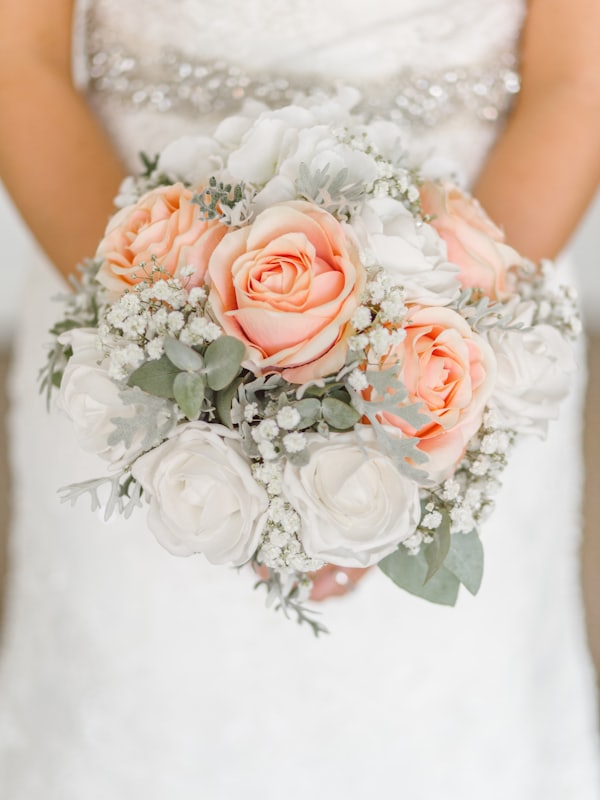
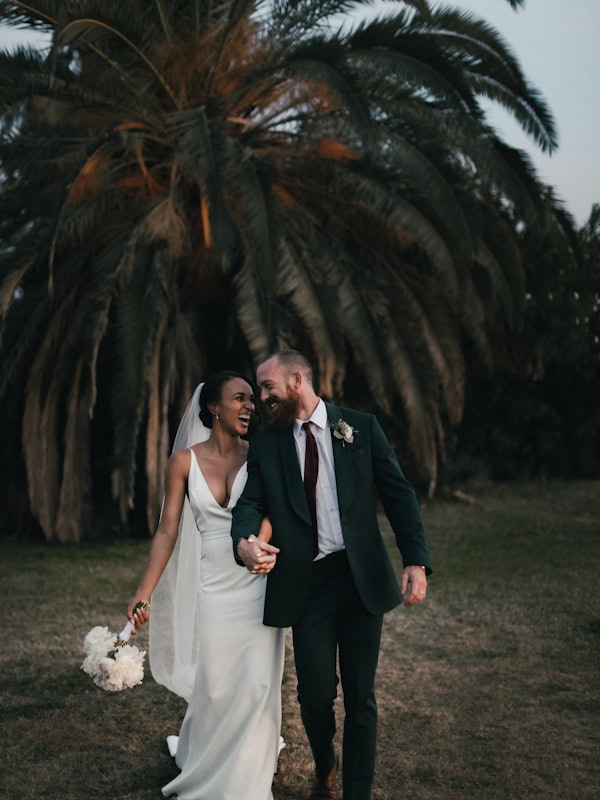
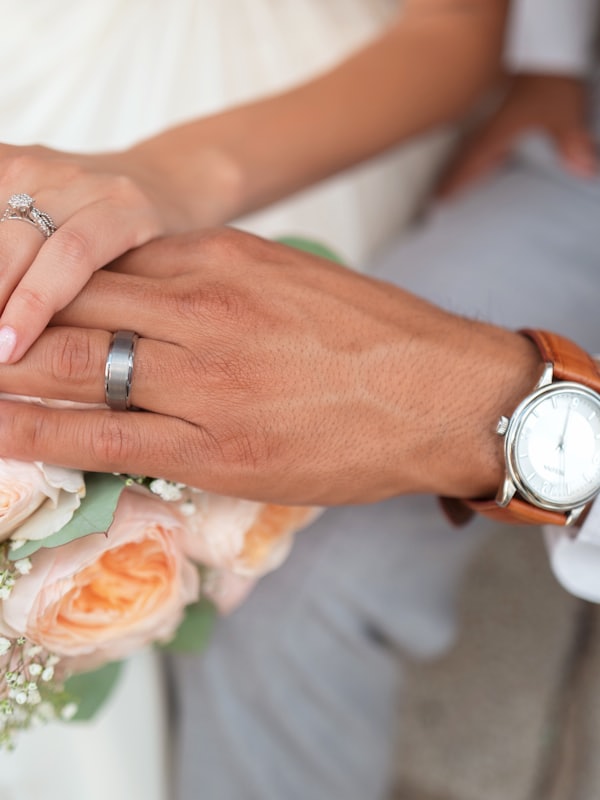
A JPEG 1080 pixels wide, ready to post.
How to use it
- Choose a photo, or drop one onto the tool.
- Pick the post shape. 4:5 suits most feeds.
- Set the border thickness, style and colour.
- Download, then post it in Instagram as it is. Don't pinch to zoom.
The sizes it makes
| Shape | Download | On the grid |
|---|---|---|
| 4:5 | 1080 × 1350 | The 3:4 tile trims a little from the sides. |
| 3:4 | 1080 × 1440 | Shows whole. |
| 1:1 | 1080 × 1080 | The 3:4 tile trims the sides. |
For other ways to do it, see how to add a white border to an Instagram photo and how to post on Instagram without cropping.
Questions
Is my photo uploaded?
No. The border tool runs in your browser, so your photo never leaves your device.
How do I post a landscape photo without cropping it?
Add a border so the whole photo sits inside a 4:5 or 3:4 post. The tool fits your photo inside the border, so nothing gets cut in the feed.
What does gallery style mean?
A border that is deeper at the bottom, like a print in a mat. Even keeps all four sides the same.
Which shape should I pick?
4:5 for most posts. Pick 3:4 if you also want the whole photo to show on your profile grid, since the grid shows 3:4 tiles.
Can I add the same border to every post?
Yes, with Borders in Swatch. You set the border on each post and see it in your grid before you share. Borders are part of Swatch Pro, and you can try them on your own photos first.
Plan the next nine in Swatch.
Free to download on iPhone. One payment unlocks Swatch Pro for good, with no subscription.
Download on the App Store →