Instagram photo dump planner
Lay out a photo dump before you post it. Drop in up to 20 photos, drag them into order, watch the swipe and see the grid tile. Then download them numbered.
As people swipe
On your grid

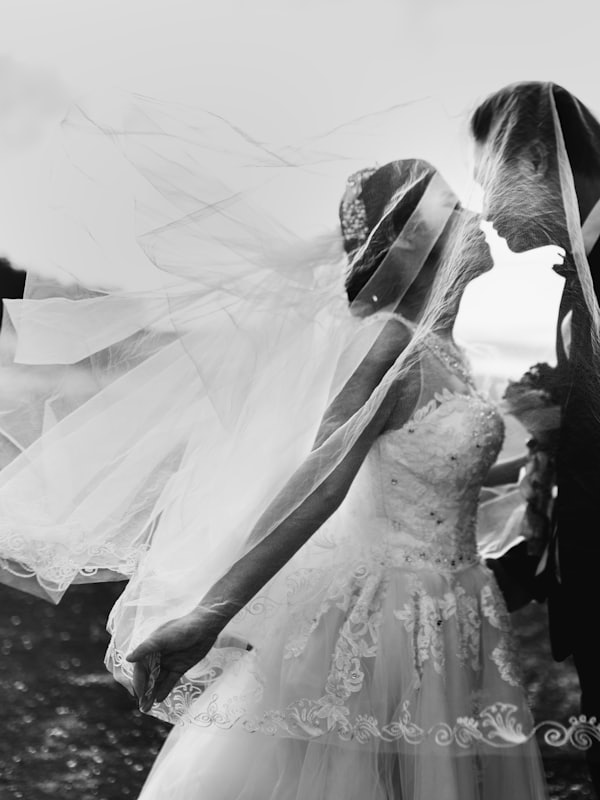
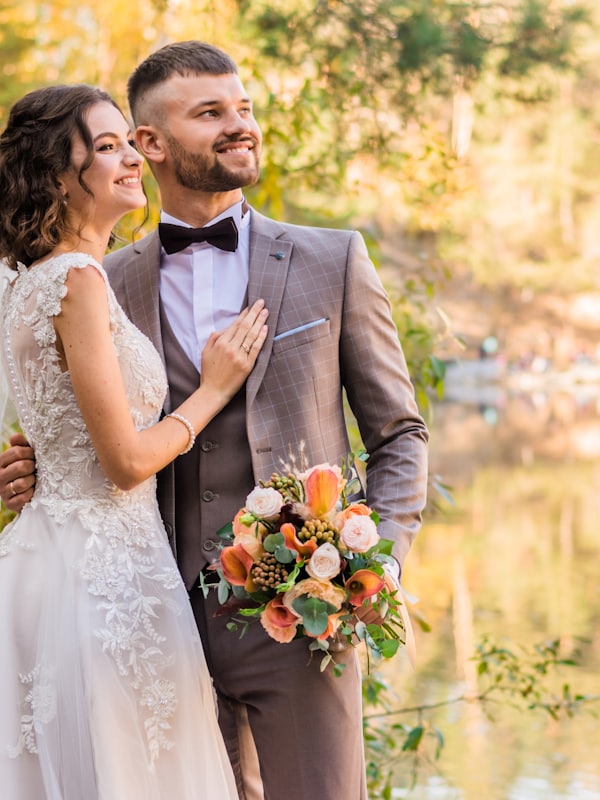
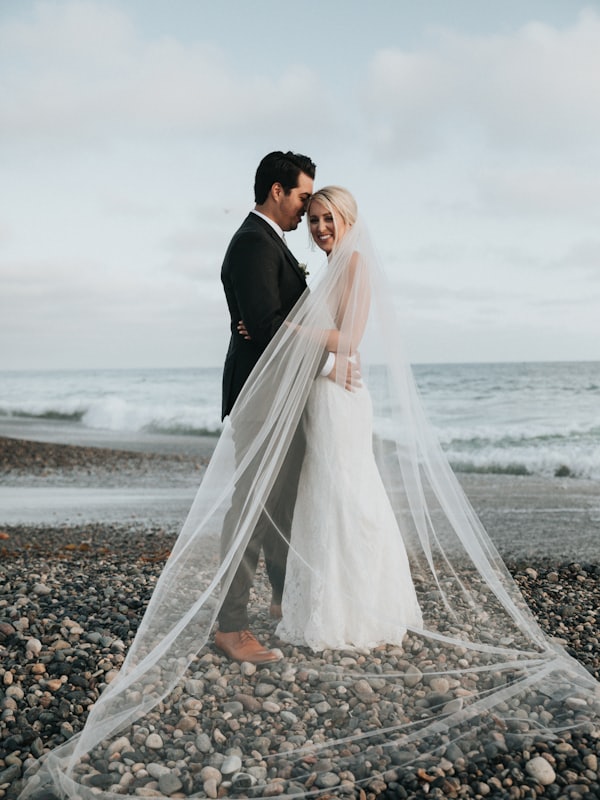
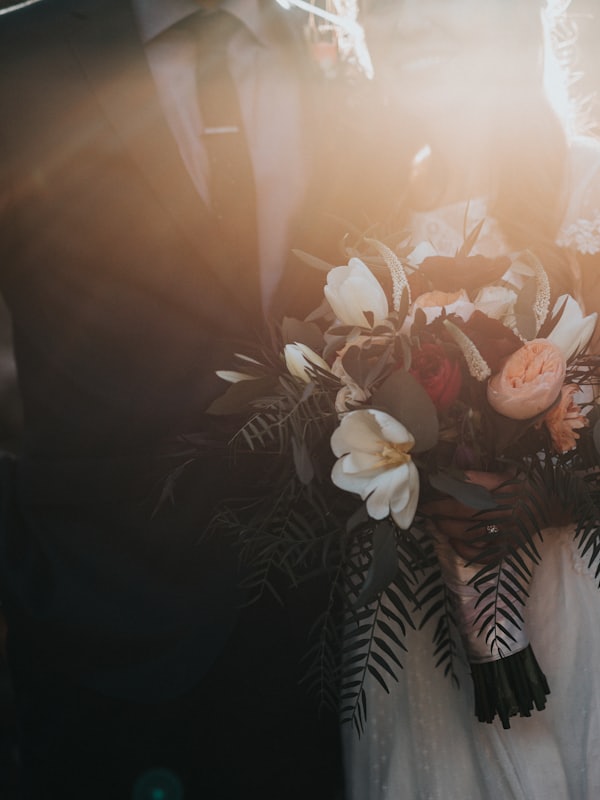
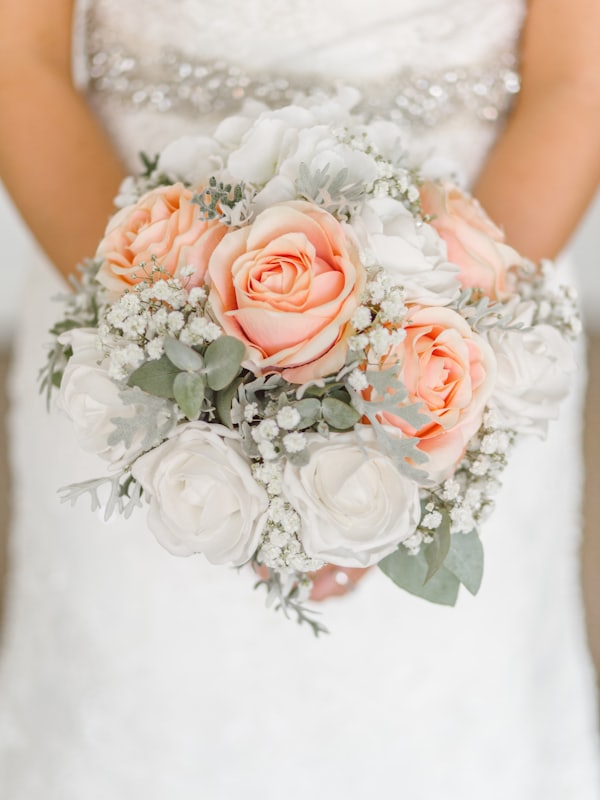
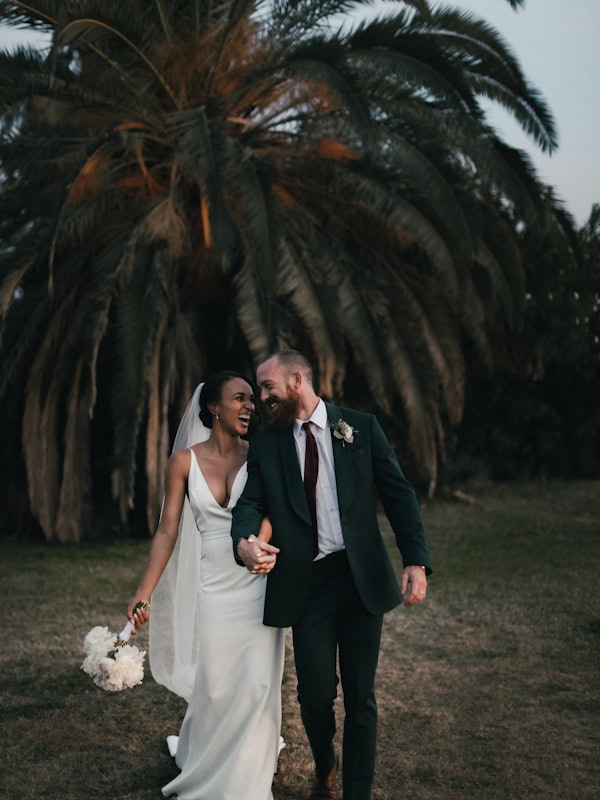
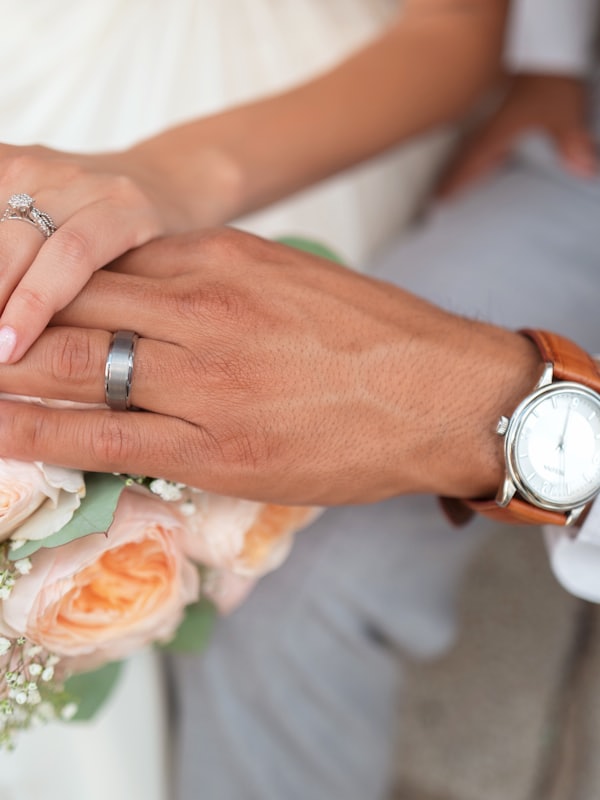
Only the first photo shows on your grid, as a 3:4 tile.
How to post your photo dump
- Download all. You get a ZIP of your photos, numbered in order.
- In Instagram, tap + and choose Post, then tap the select multiple icon.
- Pick the photos in number order: 1 first.
- Swipe through the preview, write your caption and post.
The sizes it makes
| Shape | Each photo | Best for |
|---|---|---|
| 4:5 | 1080 × 1350 | Most photo dumps. Tall in the feed. |
| 3:4 | 1080 × 1440 | The tallest shape, and the first photo shows whole on the grid. |
| 1:1 | 1080 × 1080 | Mixed portrait and landscape photos. |
For picking and ordering the photos, read how to make an Instagram photo dump.
Questions
Are my photos uploaded?
No. The planner runs in your browser, so your photos never leave your device.
How many photos can a photo dump have?
Instagram allows up to 20 in one carousel, and this planner takes 20. Most dumps read best with 6 to 10.
Why does every photo get the same shape?
Every slide in a carousel takes the shape of the first. The planner crops each photo to the shape you pick, so nothing gets cut by surprise after you post. Drag a photo to choose what stays.
Which photo shows on my grid?
Only the first, as a 3:4 tile. Put your strongest photo first.
How do I post the photos in order?
Download the ZIP and open it. The files are numbered, so pick them in number order in Instagram's select multiple view.
Can I plan the dump next to my other posts?
Yes, in Swatch. Build the carousel, drag the slides into order and swipe it in Preview beside the rest of your grid.
Plan the next nine in Swatch.
Free to download on iPhone. One payment unlocks Swatch Pro for good, with no subscription.
Download on the App Store →